Install
This application is currently in development. As such, you may encounter bugs, unexpected behavior, or incomplete features. Functionality and performance may change significantly in future updates. For macOS, all these steps and permissions are completely normal and unavoidable, including apps downloaded from the App Store itself.
The reason the app is flagged as risky for both systems is due to the lack of an authentication certificate. Currently purchasing a Windows certificate for ~$500/yr and $99/yr for Apple’s developer program for an independent and free project is not a viable option. That DOESN’T mean the app is unsafe or dangerous.
Windows install
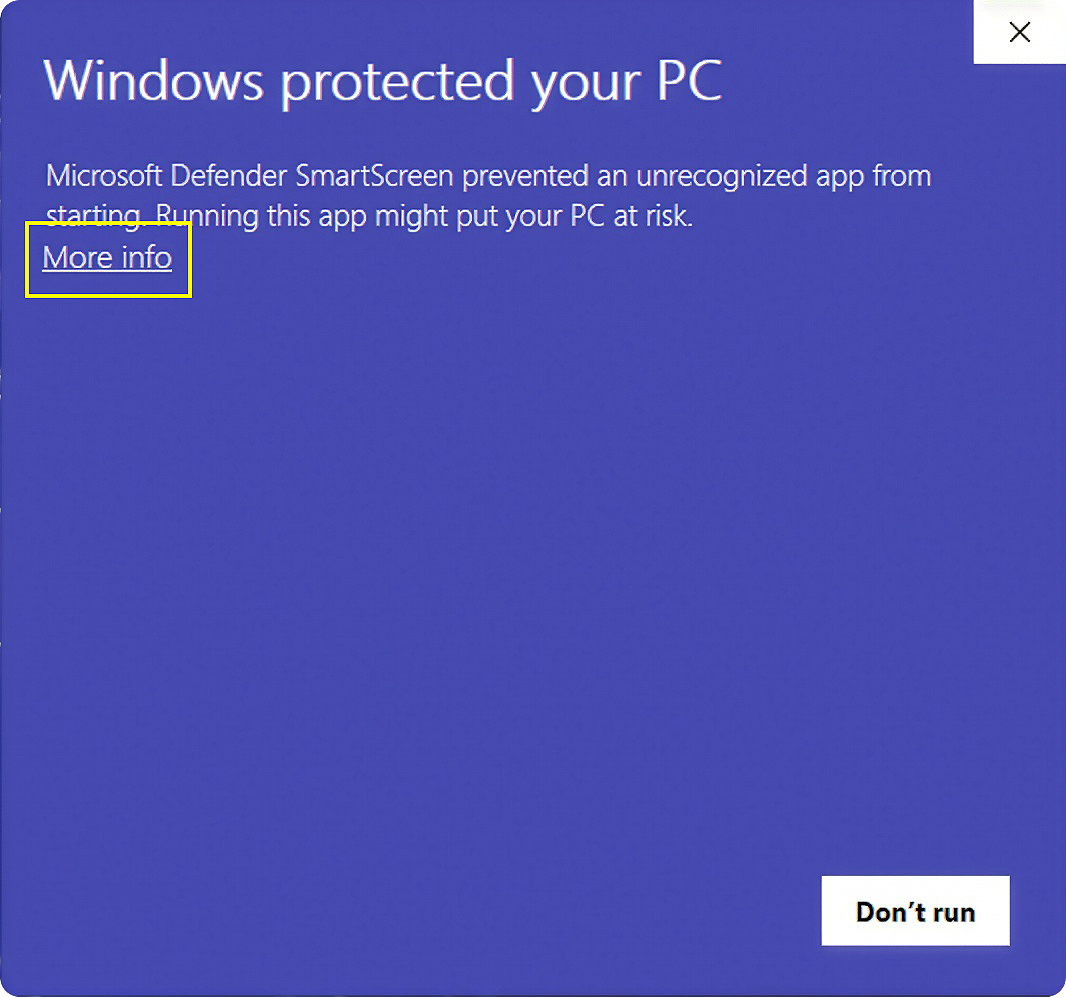
If you are installing the app on Windows, you may encounter a SmartScreen warning during installation.
TO PROCEED:
1. After run installer and when the SmartScreen dialog appears, click “More info”.
2. Then click “Run anyway” to continue.
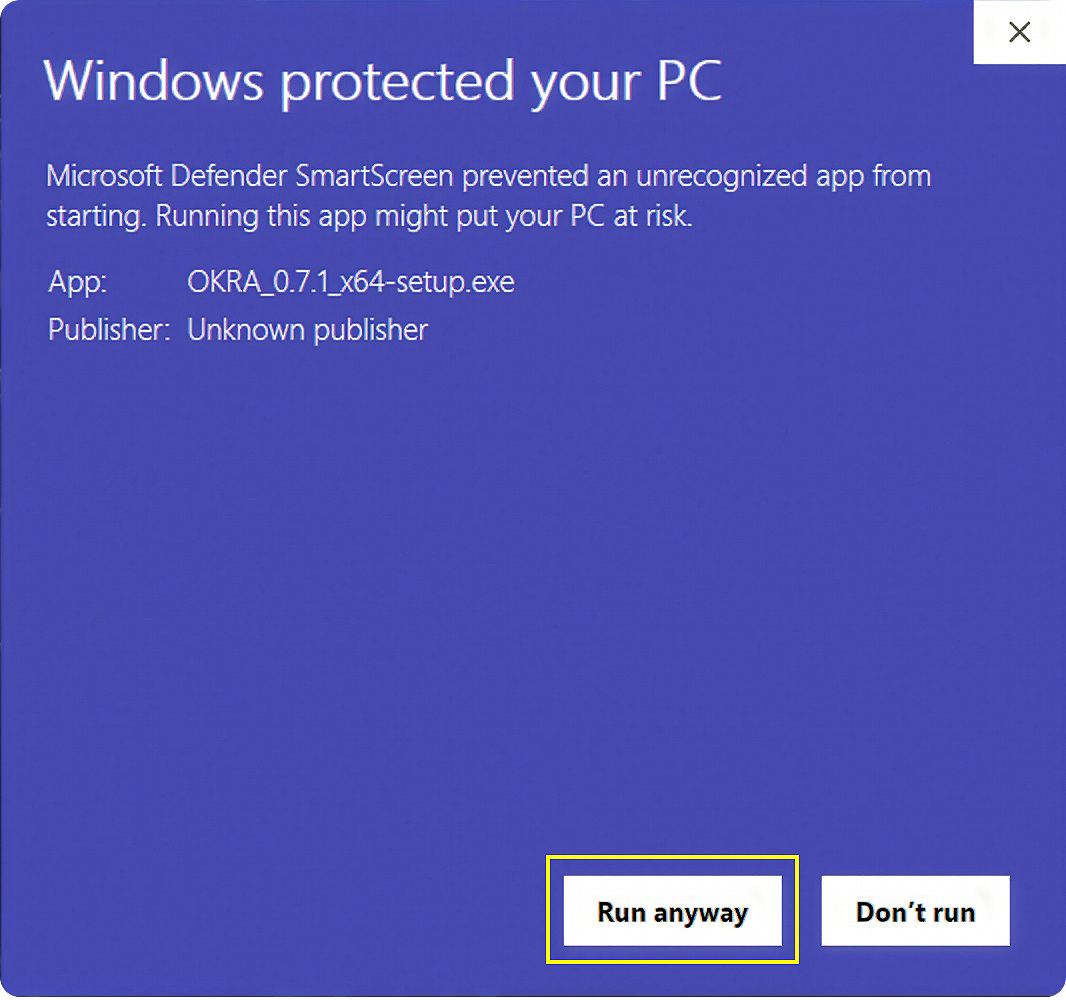
Depending on the current beta version, Windows may still display a SmartScreen warning indicating that the application is from an unknown publisher. This is expected behavior at this stage and does not necessarily indicate a security issue.
macOS install
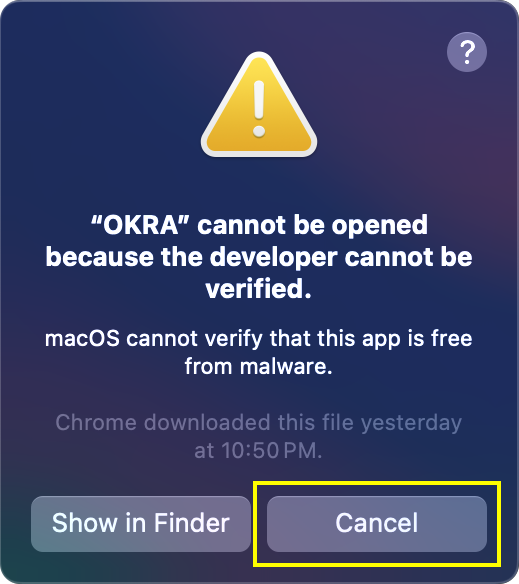
Because the app is not yet notarized by Apple, macOS may block it from opening.
TO PROCEED:
1. Attempt to open the app normally. This warning will appear the first time after an installation/update. Press “Cancel” button.
2. When macOS blocks it, go to System Settings > Privacy & Security.
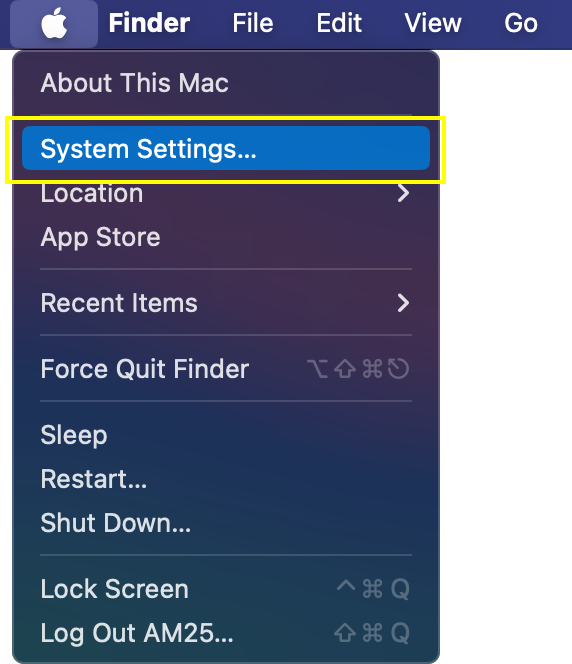
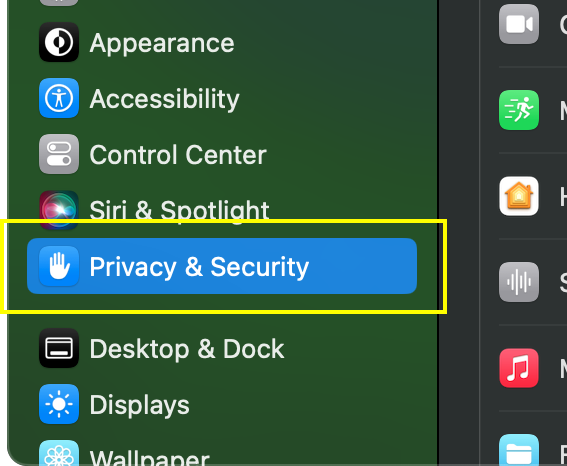
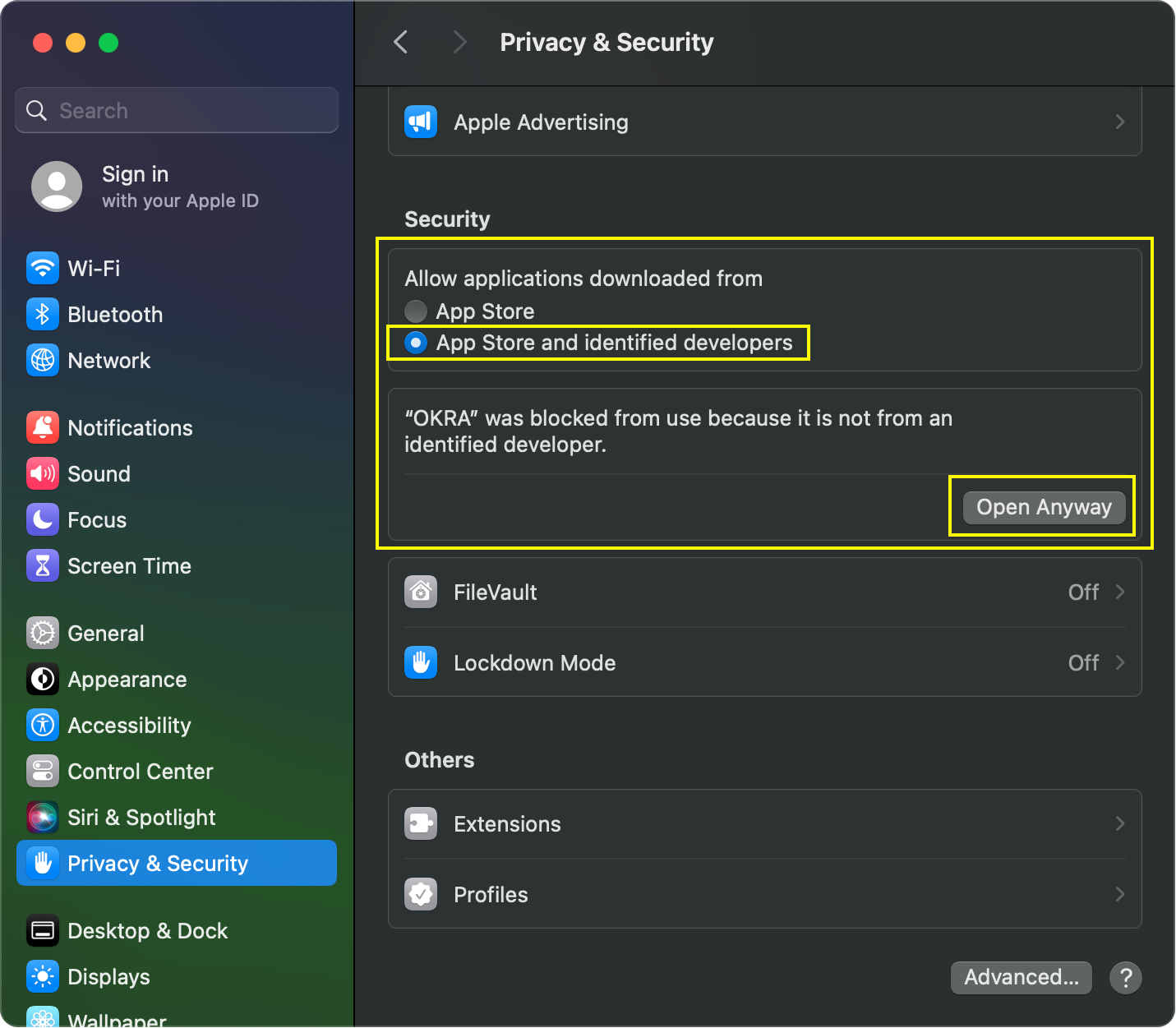
3. Scroll down to the security section where the app was blocked. Make sure you have “App Store and identified developers” enabled. Click “Open Anyway”.
4. Confirm your choice if prompted by clicking the “Open” button.
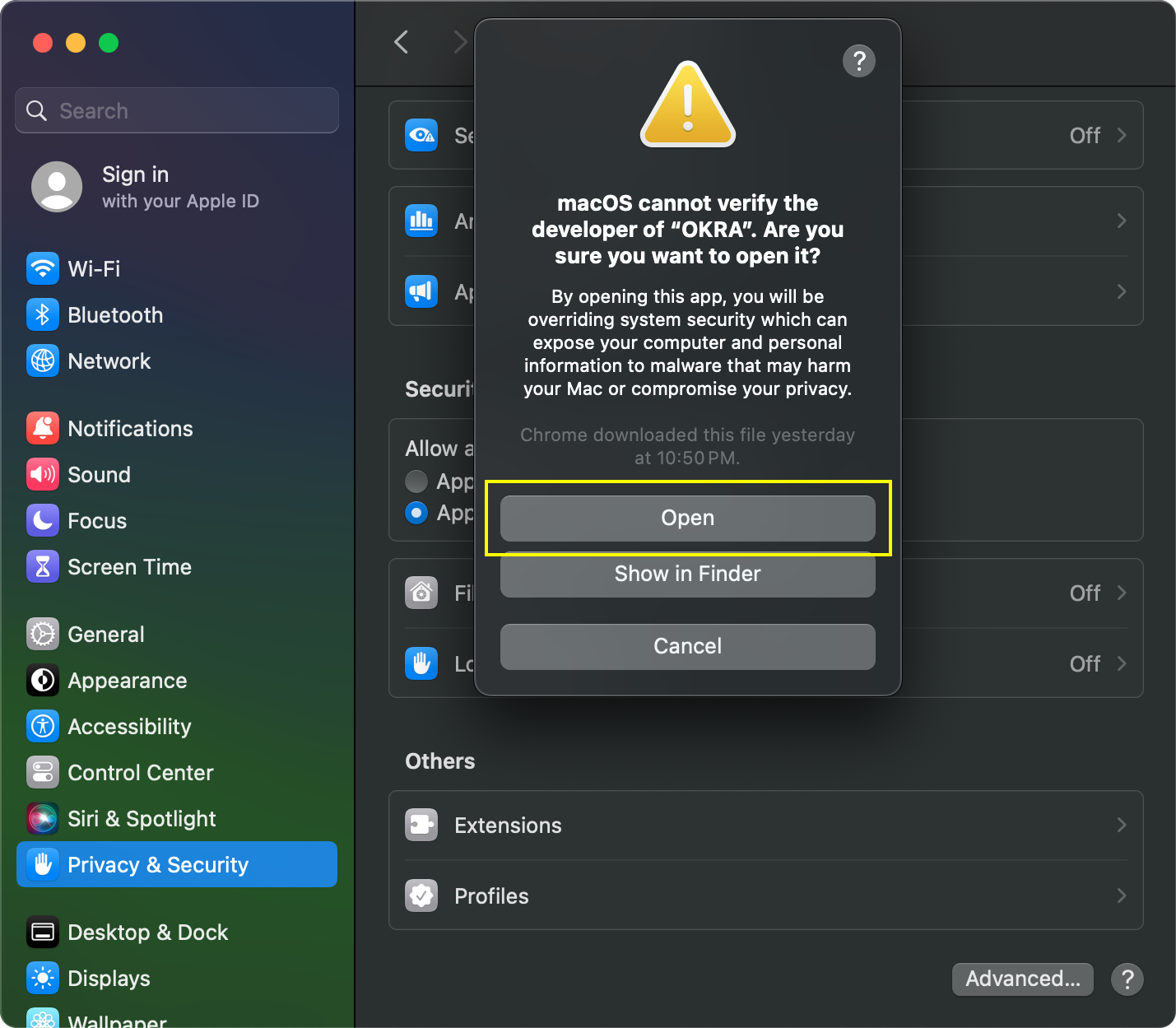
macOS may warn that the app is from an unidentified developer. This is expected for applications that are not yet notarized.
Permissions (macOS)
Apple applies a series of strict rules to any application that interacts directly with the operating system, so permissions must be explicitly granted.
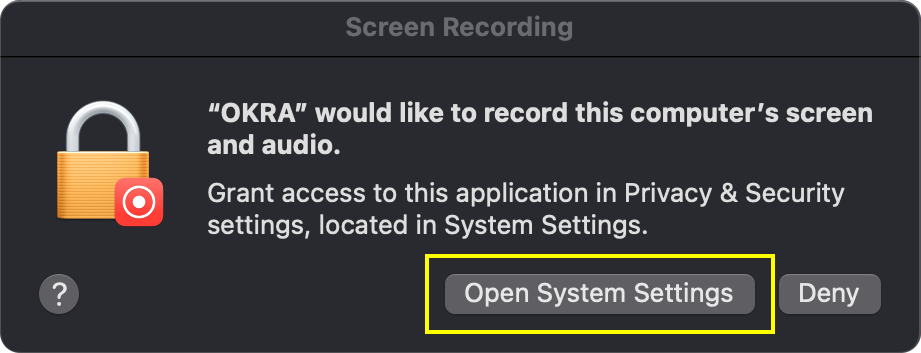
1. When the permission dialog appears, click on “Open System Settings”.
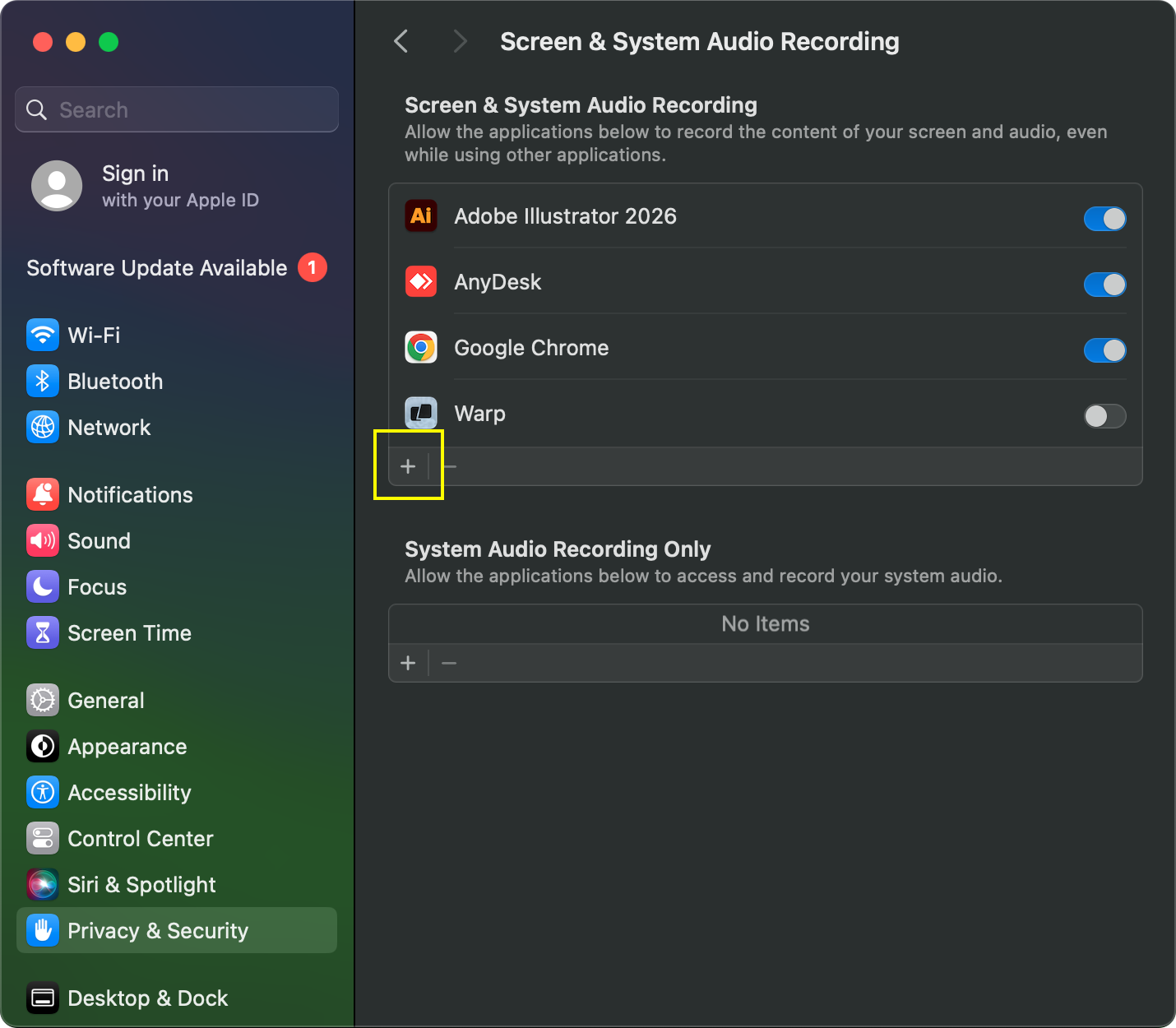
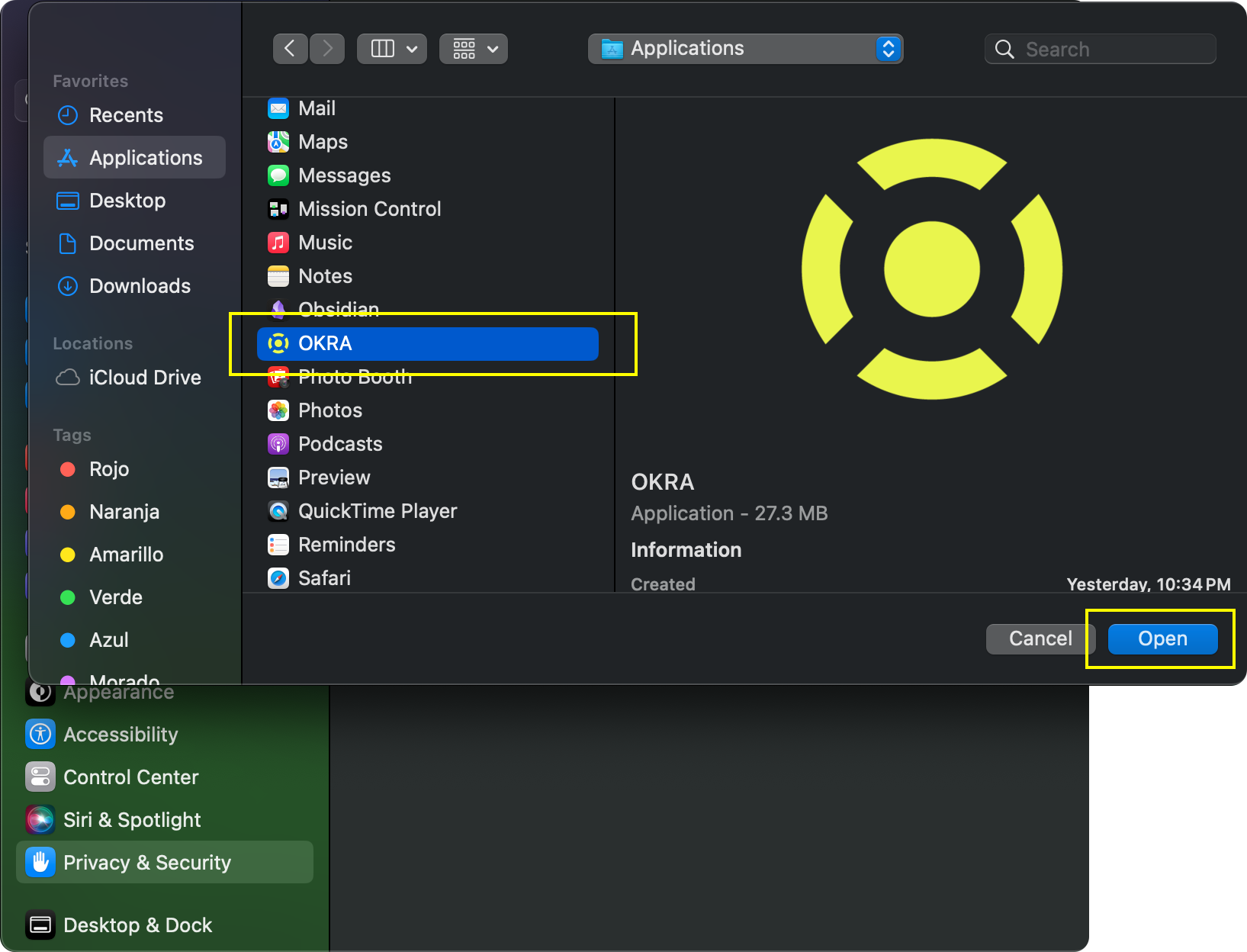
2. This will open the system settings. Click the ”+” button to add OKRA to the list of apps allowed to view your screen. A window will open, scroll until you find OKRA, select it and click on “Open”.
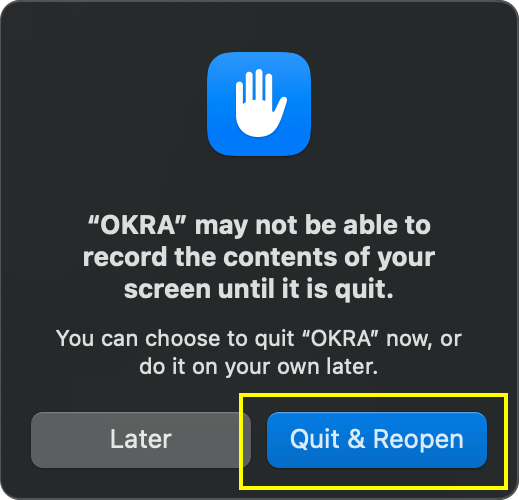
3. Finally, it will ask you to restart the app. Once you do, the app will be fully operational and functional. You may be asked to enter your password or fingerprint to allow permission settings.